
BaseCloud Books is full double-entry accounting inside BaseCloud. Once it is on, every invoice, payment, credit note and refund writes itself into your general ledger. This guide walks you through the four setup steps and what happens when your books start.
Who can do this: our team sets up your books with you and your bookkeeper. Ask BaseCloud support to start your books, and have your start date and your old system’s trial balance ready.
Before you start
Pick your start date, the day your books begin in BaseCloud. Accountants call it the conversion date. Invoices dated on or after it post into Books one by one, and everything before it comes in as one set of opening balances, dated the day before.
The cleanest start date is the first day after the last period you closed in your old system. For most US businesses that is January 1, and for many South African businesses it is March 1. The start date is fixed once your books are on, so agree it with your accountant first.
Then check what BaseCloud says each customer owes:
- Record every payment you have received, with the date it was paid.
- Credit or write off anything that will never be paid.
- Run a statement for the day before your start date to see each customer’s balance.
Step 1: Chart and start date
Open Settings, then Books, and click Set up books. Enter your start date, then choose where your chart of accounts comes from:
| Choice | What you get |
|---|---|
| The standard chart for your country | A ready-made chart for the United States (four-digit codes, such as 1200 Accounts Receivable and 4100 Service Revenue) or South Africa (three-digit codes, such as 610 Accounts Receivable, 200 Sales and 820 VAT) |
| Import it from Xero | Your accounts, account codes and tax rates, copied from your Xero organization |
| Import it from QuickBooks | Your accounts, account codes and tax rates, copied from your QuickBooks company |
| Import it from Sage | Your accounts and VAT rates from your Sage Accounting company, numbered by type |
An import reads from your accounting app and leaves it exactly as it was. Pick the connection under Connection, or choose + New Connection to sign in to Xero, QuickBooks or Sage right there in the setup.
Books adds any account it uses itself, such as Undeposited Funds or Rounding, and lists it on the Review step. Click Next.
Step 2: Match your line codes to accounts
The Accounts step lists each code your invoice lines have used, how many lines use it and the Standard Line Item it belongs to. Pick the account each code goes to.
- A code that is already an account code in your chart, such as 4100, is filled in for you.
- Product codes, SKUs and blank codes start on your sales account. Move them where they belong, such as INSTALL to Service Revenue and PARTS to Sale of Goods.
- Pick New account… at the top of any list to add an account, for example to keep subscriptions apart from once-off work.
- Automations that compare a line’s code are listed, and those marked “updated” switch to the new account code when your books start.
When your books start, every invoice, quote and credit note line takes the code of the account you picked. Standard Line Items, recurring lines and Pricebook items follow too, and amounts stay exactly the same.
Step 3: Opening balances
Enter each account’s balance on the day before your start date, from your old system’s trial balance at that date. Use Add a line for each account with a balance, and put each amount under Debit or Credit as it is on the trial balance.
Accounts Receivable is worked out for you from BaseCloud’s own invoices, customer by customer. It takes every invoice dated before the start date, less credit notes and payments before it. A part-paid invoice opens with what was still owed, and a customer who paid ahead opens with their credit.
Accounts Payable comes from your old system’s aged payables: enter what you owed suppliers at the start date.
Each bank account you give an opening balance is ready to reconcile when your books start, with its statement starting at that figure. Any small difference between your debits and credits goes to Historical Adjustment, where your accountant clears it later with a manual journal.
Step 4: Review and start
Review shows your start date, your chart and how many accounts it has, the codes you matched and the tax rates that will be created. It also lists your opening receivables, your other opening balances, the new accounts you added and the bank accounts that will be made.
Click Start books. BaseCloud then:
- Creates your chart of accounts and tax rates.
- Links your invoice lines, Standard Line Items, recurring lines and Pricebook items to their accounts.
- Posts your opening balances and makes your bank accounts, each ready to reconcile.
- Posts every invoice, credit note, payment and refund dated on or after the start date.
Everything happens at once, so your books are complete the moment they start.
Your chart of accounts
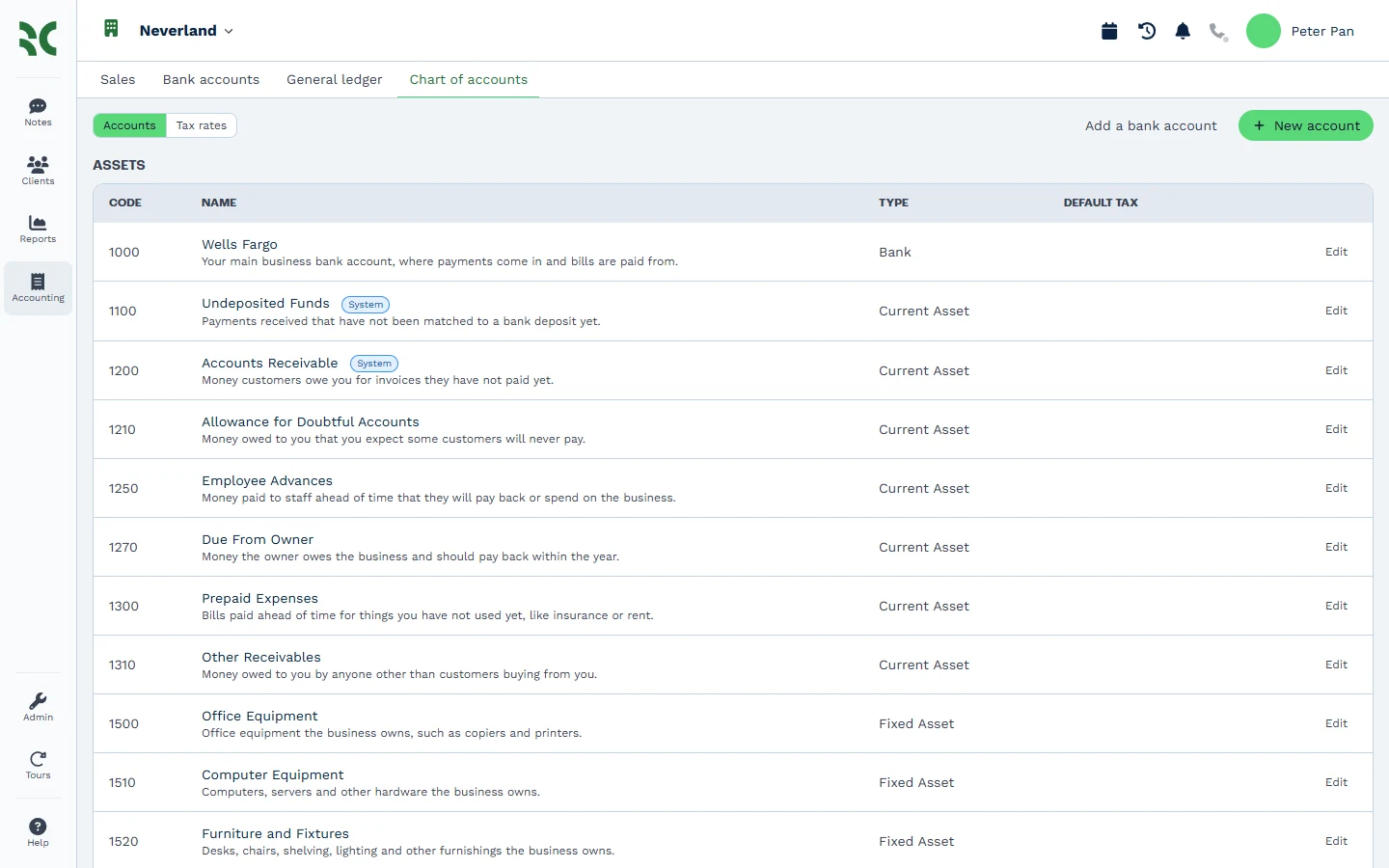
Open Accounting, then Chart of accounts, to see every account with its code and type. Click any account to see what posted to it between two dates, with an opening balance, a running balance after each line and a closing balance.
From then on, every invoice and payment posts as you save it. Every change posts a reversal and a new entry, so your books are their own audit trail, and nightly balance checks confirm they add up.
Who can see and change your books
Six user rights control Books. Set them on a team under Settings, then Teams, then Access Settings, or on the user’s own Access tab. Switching the books on gives all six to the person who did it and to everyone with Manage Users.
| Right | Lets them |
|---|---|
| View Books | See bank accounts, the general ledger, the chart of accounts, opening balances and the books’ report cards |
| Post Journals | Post and reverse manual journals, and change opening balances |
| Manage Accounts | Change the chart of accounts, tax rates, bank accounts and the reporting basis |
| Reconcile Bank | Import statements, reconcile, set up bank rules, and spend, receive or transfer money |
| Lock Periods | Change the lock dates and the financial year end |
| Adviser | Post journals between the two lock dates, as an accountant or bookkeeper does |
Books turns off and back on with our team, and everything in between catches up automatically when it comes back on.
Next, connect your bank in bank reconciliation and bank rules, and read more about BaseCloud Books.