
Automation workflows
CRM automation with 15 triggers and 49 actions
Pick what starts the workflow (a call, a text, a form, a review, a date or a change in the CRM) and let BaseCloud run the follow-ups, routing, reminders and admin. Build it on a visual canvas, or start from one of the worked examples below.
The basics
What is CRM automation?
CRM automation means your CRM does the routine steps for you. Something happens (a form is submitted, a call comes in, a review is posted, a status changes, a date comes up) and the workflow runs the next steps: create or update the client, assign it, send a text or email, book a meeting, raise an invoice, or ask AI to read and reply. In BaseCloud you build these workflows on a visual canvas, with no code needed.
What it does for you
- Track where your leads come from: calls, emails, forms, ads and date-based events
- Respond in seconds, with a text, an email or a call from Call Connect
- Assign work and send notifications automatically, so nothing waits on a person remembering
- Update client records, tables, quotes and invoices without retyping
- Connect Google Sheets, Xero, Stripe, your ad accounts and anything with an API
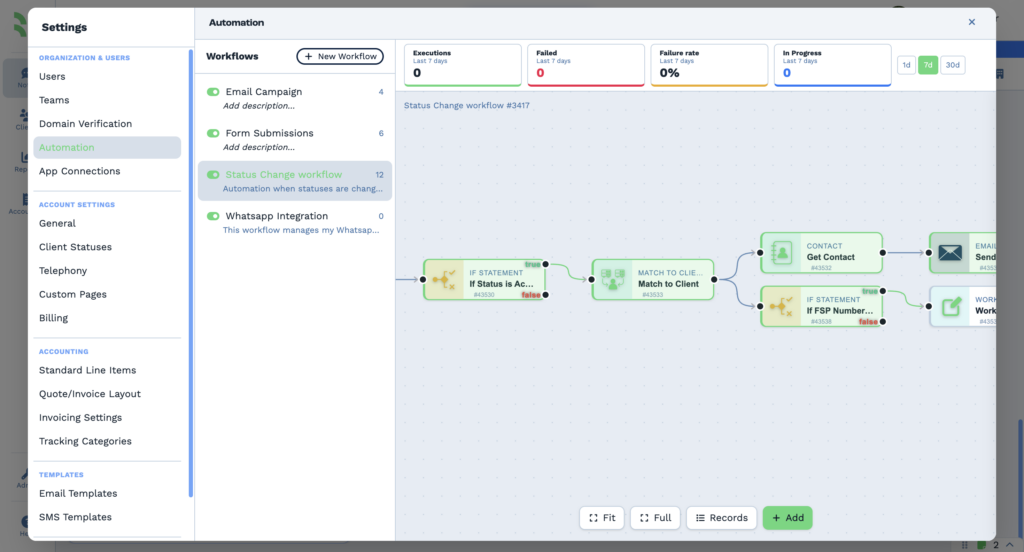
The builder
Built for real processes, not just reminders
A trigger, then as many actions as the job needs. The canvas handles the parts simple automation tools leave out.
Branches and conditions
If Statements send each run down the right path.
Loops, delays and variables
Repeat steps for every item in a list, wait between steps, and keep values for the run.
Code and SQL when you need it
Run your own JavaScript or Python, or query a MySQL database, as a step.
Run history and retries
See every run with the data each step received and returned, and run again when something fails.
Campaigns with goals
Enroll everyone who matches your criteria into a sequence, and take them out when they reach the goal.
Buttons that start workflows
Put a button on a client field or a table row, and a click runs the workflow.
AI as a step
Summaries, sentiment, extraction or an AI agent with tools, on the model you choose.
No per-task fees
Workflow runs aren’t billed per task. You pay the usage they create, such as texts, calls and AI.
Every task in the builder
15 triggers and 49 actions
Grouped by what they do. Each one links to its step-by-step page on docs.basecloudglobal.com.
Triggers (15)
Where a workflow starts: a call, a message, a form, a review, a date or a change in the CRM.
Webhook In
Receive data from any form, app or tool at your own webhook URL, and start a workflow with it.
CRM Trigger
Start a workflow on CRM events: a client or contact field changes, a table row is added or a cell changes, a quote or invoice changes, a client is created, a Workflow Note changes, or someone clicks a field or table button.
Timer Trigger
Run on a schedule: every so many minutes, hours, days, weeks, months or years.
Client Date Trigger
Run for each client whose date field comes up: renewals, birthdays, anniversaries, service dates.
Call Connect Trigger
Start a workflow on Call Connect events, when the rep and the lead are connected.
Call Tracking Number
Create a tracking number and start a workflow on every call to it, answered or missed, with the recording.
Inbound Email
Start a workflow when an email is sent or forwarded to the task’s own address.
Website Form
Start a workflow when someone submits one of your BaseCloud website forms.
Facebook Lead Ads Trigger
Start a workflow seconds after someone fills in a Facebook or Instagram lead form.
Google Sheets Trigger
Watch a Google Sheet for new rows, row updates or cell changes.
WhatsApp Message Received
Start a workflow when a WhatsApp Business message arrives.
Text Message Received
Start a workflow when a text message arrives on one of your numbers.
Google Review Received
Start a workflow when a new review is posted on your Google Business Profile.
Campaign Trigger
Enroll everyone who matches your criteria into a sequence, and take them out when they reach the goal.
Calendar Trigger
Start a workflow when a meeting is booked, rescheduled or canceled, is about to start, or has ended.
Clients and records (8)
Find, create and update the records your team works from.

Create New Client
Create a client and tag the event to it.

Edit Client
Update one client, or a list of clients.
Match to Client(s)
Find the client, or clients, that match the details you give, and tag the event to them.
Contact
Get one contact or many, add a contact or edit one.
Workflow Note
Create, fetch or edit a Workflow Note: the task or follow-up your team works from.
Table
Fetch one row or all rows, or add, edit or delete a row in a custom table.

Files
Download, save and list files, and create folders.
Accounting
Create a quote or invoice, fetch one, mark it paid or list them.
Messaging and calls (7)
Reach clients and your team by email, text, WhatsApp and phone.

Email
Send an email to the addresses you choose, with data from the workflow.

SMS
Send a text message from one of your numbers.

WhatsApp Business
Send templates, text and media through Meta’s official WhatsApp Business Cloud API.

WATI
Five WATI operations, including sending messages and files.
Call Connect
Ring your rep, then connect them to the lead.
Chat Thread
Load a WhatsApp or text conversation, so an AI chat agent replies with memory of it.
Assign Chat Thread
Assign a WhatsApp or text conversation to a person in the shared inbox.
AI and documents (3)
Let AI read, write and listen, and produce documents.

AI Prompt
Summary, sentiment, extraction, transcription, your own prompt or a chat agent, on the AI model you choose. Agents can use tools.
Speech to Text
Turn a recording into text.
PDF
Create a PDF from HTML, or add a password to an existing PDF.
Calendar (1)
Book and manage meetings on your team’s calendars.
Calendar
Book, move or cancel a meeting, find meetings, or find free time.
Marketing and reviews (5)
Ads, conversions, Google reviews and local rankings.
Google Ads
Pull campaign metrics, upload offline conversions or run a custom query.
Meta Ads
Campaign, ad set and ad performance, list campaigns, pause or enable campaigns and ads, and send Conversions API events.
Google Places
A Google Maps local rank grid, a business lookup or a competitor snapshot.
Reply to Google Review
Post a public reply to a review on your Google Business Profile.

Everlytic
Create or edit a contact in Everlytic.
Accounting and payments (4)
Accounting software and payment links.



Google Workspace (2)
Spreadsheets and documents in Google Drive.
Google Sheets
Ten operations to create, read and update spreadsheets.
Google Docs
Create, get or update a document.
Logic and data (19)
Decide what happens next, wait, repeat, share the work out, reshape data and run your own code.
Webhook Out
Send data as JSON to any other system.
If Statement
Only continue when your conditions are met.
Delay
Wait for a set time before the next step.
Loop
Repeat steps for every item in a list.

Variable
Store and update a value for this run of the workflow.
Merge Data
Combine the outputs of several steps into one.
Coalesce
Use the first value in a list that isn’t empty.
Key Match
Look up a value by its key, such as a rep’s number for an area.
Random Select
Pick an item from a list at random.
Round Robin Select
Share items out evenly, such as new leads across a team.
Math Formula
Calculate with a formula and values from the workflow.

Text Formatter
Change text case and format.
Date Formatter
Format a date, or add and subtract days.

Phone Number Formatter
Format a phone number for a country.
Extract Pattern
Pull values out of text with a regular expression.
Find and Replace
Replace text or characters in a value.

Hash
Turn a value into a hash string.
Code
Run your own JavaScript or Python.
MySQL
Run a query against a remote MySQL database.
Worked example
Phone Call Tracking Workflow
You miss every call you don’t take. Call tracking in BaseCloud CRM gives each campaign its own phone number. Every call to it is recorded, time-stamped and linked to the right client, or used to create a new one.
Never miss a lead
Missed calls reach the workflow too, so they can be flagged to the right manager.
Automatic call logging
Calls are recorded and attached to the client.
Client matching & creation
New callers are saved as leads with the source filled in.
Track performance
Use a different tracking number for each ad source.
What is a call tracking number?
A call tracking number looks like an ordinary phone number, but each one belongs to a single marketing source. When someone calls it, the call is forwarded to you as normal and the CRM records which campaign, ad or listing produced it.
Here’s how it works:
- Give each marketing source its own tracking number (for example a billboard, a Facebook ad or your website).
- When a lead calls that number, the call reaches you as normal, and the CRM logs the source.
- Missed calls reach the workflow too, so the right person can be notified straight away.
- Recordings can be summarized or checked for sentiment with AI, so you see not only where the lead came from but how the conversation went.
Why it matters for your business:
- See exactly which campaigns are working (and which aren’t).
- Respond quickly to missed opportunities.
- Get better data from every call without extra effort.
How it works
- A customer calls a unique tracking number.
- The CRM checks whether they are an existing client.
- The call is logged, recorded and assigned.
- If it was missed, it’s flagged for follow-up with automated steps.
Easy setup
- Create the tracking number: add a Call Tracking Number trigger, then choose the country, area code and destination number.
- Review the set-up: view or edit tracking and destination numbers at any time.
- Use the call data: caller number, tracking number, call status, duration and the recording link are passed to the next steps.
- Automation:
- Match to Client → if matched, send a Workflow Note with the recording.
- If not, Create New Client, assign with Round Robin Select, and send the note and recording.
- Missed calls:
- Use an If Statement on the call status or a talk duration of 0.
- Start a follow-up, such as a text back.
Worked example
Web Forms & Integrations Workflow
Connect everything, automate anything. Website forms and webhooks bring data in from your website, ads and other apps, and run automations inside BaseCloud CRM.
Capture form data
Pull in data from websites, landing pages and lead forms.
Centralize external input
Collect leads from every channel in one place.
Keep profiles up to date
Update CRM records automatically, or create new ones.
Trigger workflows
Use the submitted data to start the next steps.
How it works
- A form is submitted, or another service sends data to your webhook URL.
- The CRM captures and logs it.
- The data creates or updates a client and starts the next steps.
Easy setup
- Choose the trigger: Website Form for BaseCloud forms, Webhook In for anything else.
- Activate it and copy the webhook URL into the external tool, if you use one.
- Build your workflow:
- Receive the lead’s details.
- Use Match to Client or Create New Client.
- Send a Workflow Note with the details, or assign a manager.
Worked example
Email Capture Workflow
Match & route incoming emails. Email Capture connects shared inboxes like info@your-company.com to BaseCloud CRM. Emails are matched to existing clients or used to create new ones, with routing and attachments kept.
Centralize inboxes
Manage shared or low-priority inboxes from one place.
Ensure fast routing
Tag the right person to a task automatically.
Create or match leads
Every sender is checked and saved as needed.
Log communication
Messages are saved to the CRM with context and files.
How it works
- An email is sent to a monitored mailbox.
- BaseCloud receives the sender, recipient, subject, body and attachments.
- The workflow checks for an existing client and logs the email, or creates one.
- The rest of the workflow follows from there.
Easy setup
- Add an Inbound Email trigger: it gets its own address.
- Auto-forward your shared mailbox (e.g. info@) to that address.
- Build the automation:
- Use Extract Pattern to pull out details.
- Match to Client or Create New Client.
- Send an Email or a Workflow Note with the details.
Worked example
Call Connect Events Workflow
Instant calls, instant conversations. Call Connect turns a form submission into a live call between your sales rep and the lead. The CRM does the dialing, the prompt and the logging, within seconds.
Respond quickly
Call leads right after they submit.
Impress customers
An instant call-back builds trust.
Route intelligently
Use form answers to send the call to the right person.
Follow up missed calls
Build in a retry if the first attempt fails.
How it works
- A form is submitted (Website Form or Webhook In).
- The CRM works out the rep’s and the lead’s numbers.
- The rep hears a voice prompt and accepts the call.
- The call is connected and everything is logged.
Easy setup
- Trigger on the form: capture details like name, area and service.
- Key Match the area to the rep’s phone number.
- Pre-call logic:
- Match to Client or Create New Client
- An If Statement to hold calls after hours
- Call Connect task:
- Leg A = the rep’s number
- Leg B = the lead’s number
- Whisper = the prompt the rep hears (e.g. “Lead from Sandton. Press 1 to connect.”)
- Handle the outcome:
- Log call data, durations and recordings.
- If it failed, add a Delay and a second Call Connect attempt.
Worked example
System Triggers Workflow
Respond to every action in real time. The CRM Trigger watches for changes inside the CRM (field edits, status changes, new rows, button clicks) and starts a workflow the moment one happens.
React to changes instantly
Run flows when a field or table changes.
Automate common actions
Trigger tasks without manual input.
Guide team workflows
Alert the team when a record changes.
Keep profiles consistent
Sync field changes to other systems.
How it works
- A field or action in the CRM changes.
- BaseCloud detects it, with the details of the change.
- The workflow runs and the next steps follow your logic.
Easy setup
- Add a CRM Trigger and pick the event: a field change, a button click, a new row and more.
- Choose the field to watch (e.g. Status or a custom field).
- Automation logic:
- An If Statement checks the new value (e.g. “Status = Lost”).
- If fields are empty, prompt an update with a Workflow Note.
- Use Delay to check again or follow up.
Worked example
Date Triggers Workflow
Automate based on important dates. The Client Date Trigger runs automations from date fields on your clients: birthdays, renewals, expiry dates or service reminders.
Send time-based alerts
Schedule notifications to your team or your clients.
Run marketing campaigns
On birthdays or anniversaries.
Ensure regular follow-ups
Tie workflows to monthly or yearly cycles.
Trigger checklists
Set actions in motion on key dates.
How it works
- A date field is added to the client.
- BaseCloud watches for the date to come up.
- The workflow runs according to your rules.
Easy setup
- Add a Client Date Trigger.
- Select the date field (e.g. “Maintenance Date”).
- Choose the frequency: daily, weekly, monthly, quarterly or yearly.
- Set the offset: e.g. “5 days before” or “on the date”.
- Set the time it runs (UTC), e.g. 08:00.
- Build the workflow:
- An If Statement to check the client’s status
- A Workflow Note to the team
- Update a table, or send an email or text
Lead tracking
UTM Parameter Tracking
What are UTM parameters?
How does BaseCloud CRM use UTM parameters?
Why do we use them?
One platform
Automation runs through every BaseCloud feature
Calls, texts, WhatsApp, email, AI, quotes and ads all feed workflows and are driven by them. See how automation works in each.
AI CRM
AI agents with tools, call summaries and AI search, on the model you choose.Lead tracking and attribution
UTM capture, forms, Facebook Lead Ads and conversions sent back to your ads.Call tracking
Tracking numbers in 15 countries that show which ad made the phone ring.Business texting (SMS)
Two-way and bulk texting, with US 10DLC registration handled for you.WhatsApp CRM
WhatsApp Business in a shared inbox, with an AI agent that can reply.Quotes and invoicing
Quotes, invoices, recurring billing, a pricebook and online payment.
FAQ
CRM automation questions
What is CRM automation?
How many triggers and actions does BaseCloud have?
Do I need to code to build a workflow?
Will someone build our first workflows with us?
Does automation cost extra?
Can a workflow use AI?
What is a call tracking number?
See your process as a workflow
Book a demo and we’ll sketch one of your own processes in the builder, or start a free trial and build your first workflow today.