
Reconciling checks your books against your bank, one statement line at a time. BaseCloud Books suggests what each line is, matches a customer’s transfer straight to the invoice it pays, and splits a Stripe or Paystack payout into the payments inside it with the fees booked. This guide covers bank accounts, statements, reconciliation, bank rules and money outside your invoices.
Who can do this: View Books to see bank accounts and their lines. Manage Accounts to add, edit, archive or restore a bank account. Reconcile Bank to import statements, sync a feed, reconcile, set up bank rules and spend, receive or transfer money. Reconcile Bank goes with access to every client, and paying invoices from a bank line also uses Pay Invoices.
Add a bank account
Open Accounting, then Bank accounts, and click Add bank account.
| Field | What to enter |
|---|---|
| Name | What you call it, such as Business Checking |
| Account number | Optional. The last four digits are kept to tell your accounts apart |
| Account in your chart | Pick it when your chart already has this bank account |
| Account code | For a new account in your chart. Leave it empty for the next free code |
| Statement opening balance | The balance on the bank’s statement just before the first line you will import |
Each bank account on the page shows its statement balance, the date of its last line, its balance in your books and how many lines are left to reconcile.
Bring in your statement
Choose how lines arrive in the bank account’s Feed settings, under How statement lines arrive. Bringing in a statement leaves your books exactly as they are until you reconcile.
Import a statement file
- Download a statement from your bank as CSV, OFX, QFX or QIF, up to 8 MB.
- On the bank account, click Import a statement and choose the file.
- For a CSV file, match the columns. BaseCloud guesses them, and the preview updates as you change any.
- Check the preview, then click Import.
Lines you already have are skipped, so overlapping files import cleanly.
Connect a live bank feed
US banks connect through a live bank feed from Plaid that brings in new transactions every hour.
- Connect your bank under Settings, then App Connections & Keys.
- On the bank account, open Feed settings and choose A bank feed brings them in.
- Pick the Bank connection and the Account at this bank.
- Choose the first day to bring in under Bring in lines from, or leave it empty to start from the day your books start.
- Click Save.
Click Sync feed to bring lines in right away. Cleared transactions come in, and a line the bank changes updates with it until you reconcile it.
Reconcile a bank account
On the bank account, click Reconcile. The lines to reconcile are listed oldest first, with What the bank says on the left and What it is in your books on the right.
| Tab | Use it when |
|---|---|
| Match | The money is already in your books, or it pays an open invoice |
| Create | It is a bank fee or a card purchase: create spend or receive money from the line |
| Transfer | It moved between two of your own bank accounts |
BaseCloud suggests the best match for each line. It looks for one payment for exactly the amount, several payments that add up to the line, a transaction already in this bank account, or an open invoice the money pays. When the suggestion is right, click OK and the line is reconciled.
For anything else, click Find something else, search by contact, reference or amount, and tick everything that makes up the line. When it adds up exactly, click Reconcile. Ignore a line that needs nothing in your books, such as one the bank listed twice.
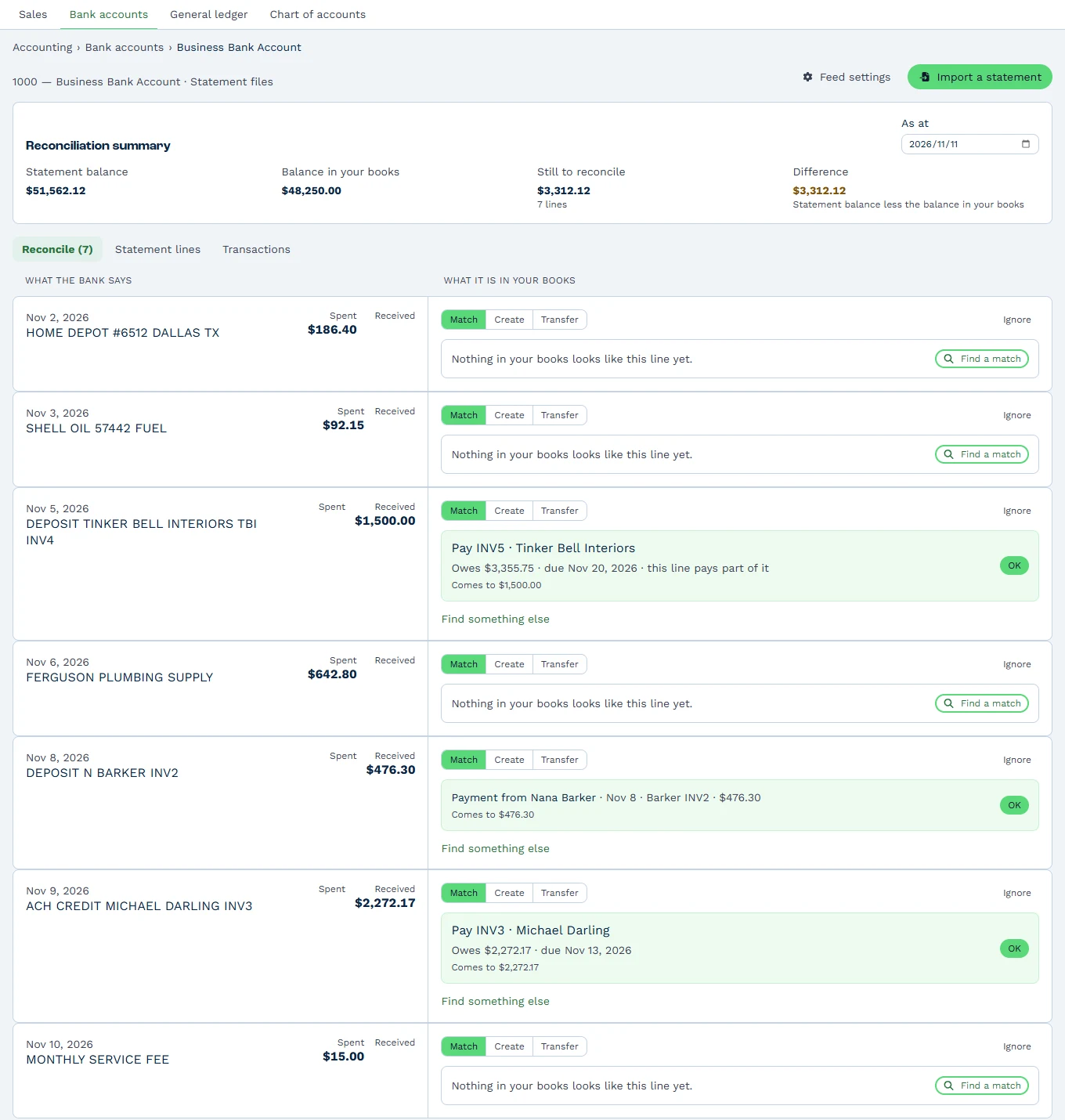
Match a transfer to its invoice in one click
When a customer paid by bank transfer, match the line straight to the invoice. The suggestion reads like “Pay INV1024 · Acme Corp”: click OK, and the payment is recorded and the line reconciled in one step.
BaseCloud recognizes the invoice number or the client’s name in the bank’s description. To pay several of one client’s invoices from one line, tick them under Open invoices in Find something else. Anything left over is kept as the client’s credit, and the automations for a paid invoice and a payment received run as usual.
Match a Stripe or Paystack payout with its fees
Stripe and Paystack pay you a batch of payments at once, less their fees. A $1,000.00 batch with $29.30 in fees reaches your bank as $970.70.
BaseCloud matches the payout to the payments inside it and shows the difference: “Less $29.30 bank or merchant fees”. Click OK and the fee is booked to your Merchant Fees or Bank Fees account. Online payments go to an account named Stripe Clearing or Paystack Clearing when your chart has one, so you can see what the gateway still owes you.
Unmatch a line
Find the line under Statement lines on the bank account and click Unmatch, or Restore for an ignored line. The line goes back to the lines to reconcile, and anything the match moved into the bank is reversed.
Bank rules
A bank rule says what an everyday line is, such as the monthly bank fee or a software subscription. When you reconcile a line the rule fits, everything is filled in and you click OK.
Open Bank rules from Accounting, then Bank accounts, and click New bank rule.
- Give the rule a name, such as Monthly bank fee, and pick Every bank account or one account.
- Under When a statement line…, fill in what to look for: money in or out, words in the description, the payee, the reference or an amount range.
- Under Then record it as, pick the account, and add a tax rate, contact, reference or description if you like.
- Set the Order for lines that fit more than one rule, and click Add rule.
| Rule | When a statement line… | Then record it as |
|---|---|---|
| Monthly bank fee | is Money out, description contains “service fee” | Bank Fees |
| Phone bill | is Money out, payee is Verizon | Telephone & Internet, contact Verizon |
| Interest | is Money in, description contains “interest” | Interest Income |
In South Africa, a VAT-registered business gives a bank fee rule its 15% VAT rate, so the VAT is claimed back.
Spend money, receive money and transfers
Money outside your invoices, such as a card purchase or a loan repayment, is recorded as spend money or receive money, and money between your own accounts as a transfer. The quickest way is from the bank line with Create while you reconcile.
For a transaction with several lines, open Spend, receive or transfer money from Accounting, then Bank accounts:
- Under What happened, choose Spend money, Receive money or Transfer between bank accounts.
- Pick the bank account and the date, and add a contact and reference if you like.
- Choose whether amounts are Tax inclusive, Tax exclusive or No tax.
- Add a line for each account with its tax rate and amount, then click Save.
A US business records a $64.95 office supply purchase as one line to Office Supplies at the No tax rate, since the sales tax is part of the cost. A South African VAT-registered business records a R1,150.00 purchase tax inclusive at 15%, so R1,000.00 goes to the expense and R150.00 to VAT.
Money from a customer is a payment on their invoice: record it with Record payment, or match the bank line to the invoice as above.
A month-end routine
- Bring each statement up to date: import the month’s file, or click Sync feed.
- Reconcile every line for the month.
- Check the Difference as at the last day of the month with your bookkeeper.
- Set your lock date to the last day of the month. See lock dates and year end.
Read more about BaseCloud Books.