
Tickets, orders and process tracking
A CRM ticketing system for tickets, orders and any process with stages
Build the board your business needs from a custom table. Each card is a ticket, an order or a job, each column is a stage, and you drag the card forward as the work moves. It is a ticketing CRM: every card sits on the client record, so you don't need a separate ticketing or project tool.
See pricing · Every feature is on every plan.
At a glance
- A Kanban board for any process
- Your own columns, stages and colors
- Every ticket and order on the client record
- Files open right from the card
- Automation with no monthly run limit
See it in action
Watch an order move across the board
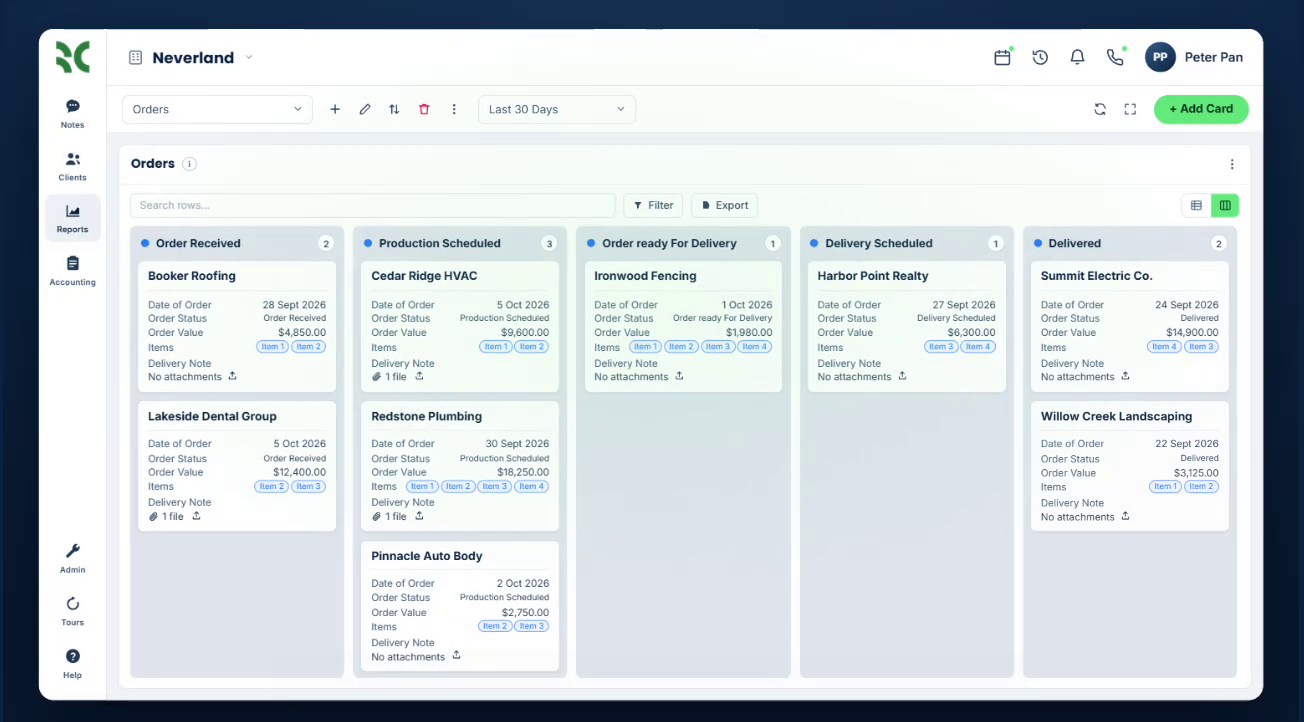
An orders board inside BaseCloud CRM. A card is dragged to the next stage, the order status updates, and the delivery note opens from the card.
The problem
Work that moves in stages shouldn't live in a spreadsheet
Orders, support tickets, claims and installations all move through steps. When those steps are tracked in a spreadsheet, or in a tool that doesn't know your customers, people lose sight of where things stand.
A spreadsheet nobody trusts
Someone has to remember to update the status, so the sheet is out of date by lunchtime.
A ticket tool that doesn't know the customer
The ticket is in one system, and the calls, emails and invoices for that customer are in another.
Customers asking where it's at
Nobody tells the customer the order shipped or the ticket was resolved until they call to ask.
Work stuck at one step
Without one view of every stage, you can't see that ten jobs are waiting on the same person.
How it works
From a blank table to a working board
Create a table for the process
Add a table with the columns you need, such as order value, items, due date, owner and delivery note. Add a choice column for the stages.
Put it on a dashboard as a board
Add the table to a Reports dashboard, switch it to Kanban view, pick the stage column and choose which fields show on each card.
Work the board
Drag a card to the next column and its status updates. Edit fields and upload files on the card, and everyone's board updates live.
Let workflows do the follow-up
A workflow can start when a row is added or a stage changes, then notify the customer, assign the next person or update another system.
What it does
Everything a ticket and process board should do
The board is built from custom tables, reports and the workflow builder, which are included on every plan. You decide the columns, the stages and what happens at each one.
A board for every process
One board column for each option of a choice column, in your order and your colors, with a count on every column. Build as many boards as you have processes.
Drag to the next stage
Drop a card in another column and the status on the record changes. Colleagues see the move on their own screen without refreshing.
Cards that show what matters
Pick up to ten fields to show on each card and put them in the order you want. Edit text, numbers, dates and choices right on the card.
Fourteen column types
Text, numbers, currency, dates, single and multiple choice, one or several users, files, locations and buttons. Checkbox columns give every card a checklist you tick off on the board.
Files on the card
Upload a delivery note, job card or photo to a card. Click to preview PDFs, images and Office documents without leaving the CRM.
Owners, deadlines and escalation
Assign each ticket to a person with a user column and give it a due date. A workflow reminds the owner on the day, or alerts a manager when a ticket is still open after the time you set.
On the client record
Every ticket and order belongs to a client and shows on that client's Tables tab, next to their calls, emails, quotes and invoices. Changes are logged with who made them and when.
List view, search and filters
Switch the same data to a list to sort it, total a number column and edit many rows at once. Search and column filters apply to both views, and the list exports to CSV.
Automation that doesn't run out
Start a workflow when a row is added or a column changes, then message the customer, create a task or call another system. There is no monthly limit on runs. You pay only for the texts, WhatsApp messages, calls and AI a workflow uses.
Buttons that run a workflow
Add a button column, such as Notify Client, and one click on the card runs the workflow you attached to it.
Order tracking software, inside your CRM
This board tracks orders from received to delivered. Each card shows the client, the order date, the value, the items and the delivery note, and each column shows how many orders are waiting there.
Change the stages and the fields and the same board tracks support tickets, insurance claims, manufacturing jobs, repairs or client onboarding.
- Columns and colors come from your own stage list
- Search and filters narrow the board to what you need
- Click a card to open the row on the client's record
- Show the board full screen on an office TV
Reference
What teams track, stage by stage
Four common setups, and the automation that goes with them. Stage names are yours to choose.
Processes to run on a board
- Support tickets: Open, In Progress, Resolved
- Orders: Order Received, In Production, Delivered
- Claims: Submitted, Assessed, Paid Out
- Manufacturing: Cutting, Assembly, Quality Check
- Onboarding, repairs, installations and bug tracking
Start a workflow when
- A row is added to a table
- A column changes, such as the stage or the owner
- Someone clicks a button on a row
- A website form is submitted
- An email, WhatsApp message, text or call comes in
- A due date arrives, or a set time has passed
Do this in a workflow
- Add a row, such as a new ticket from a form
- Edit a row, such as moving it to the next stage
- Fetch one row or all rows that match
- Delete a row
- Text, WhatsApp or email the customer
Popular board workflows
- Email the customer when their order ships
- Create a ticket from a support email
- Alert a manager when a ticket is still open after four hours
- Send a survey when a ticket is resolved and save the score
- Create recurring jobs on a schedule
One platform
Tickets and orders that share the client record
A card on the board belongs to the same client as your calls, messages, quotes and invoices, so the person working a ticket has the customer's history in front of them.
Automation workflows
A visual workflow builder with 15 triggers and 49 actions.CRM reports and dashboards
Explore 30+ reports, build dashboards and keep key numbers on screen.Email tracking and shared inboxes
Gmail and Microsoft 365 sync, open tracking, team inboxes and email rules.WhatsApp CRM
WhatsApp Business in a shared inbox, with an AI agent that can reply.Business texting (SMS)
Two-way and bulk texting, with US 10DLC registration handled for you.Quotes and invoicing
Quotes, invoices, recurring billing, a pricebook and online payment.
Popular with
Learn more
- Adding custom tablesA video walkthrough that builds an Orders table with a status column.
- What is a CRM ticketing system?A plain guide to ticketing inside a CRM, and when you need a help desk.
- BaseCloud as a Jira alternativeFor teams whose tickets belong to customers.
- BaseCloud as a Trello alternativeBoards where every card sits on a client record.
- BaseCloud as a monday.com alternativeBoards, CRM, phone and invoices on one subscription.
Step-by-step docs
FAQ
Questions buyers ask
Does BaseCloud CRM have a ticketing system?
Can BaseCloud replace Jira, Trello or monday.com?
Is it a help desk like Zendesk or Freshdesk?
Can customers be told automatically when their ticket or order moves?
Can tickets be created automatically from a form or an email?
Is there a limit on how many automations can run?
Who can see a board?
Put your process on a board
Show us how your tickets, orders or jobs move today, and we'll set up the table, the board and the workflows in BaseCloud CRM.