
AI Voice is the AI receptionist inside BaseCloud. You add it as a step in a call flow, and it answers the call, talks to the caller, books appointments and takes messages. This guide walks you through the setup, from the first click to a test call.
You need the Manage Phone & Messaging right to change call flows. Other users can open Telephony/Texting settings to see how calls are set up.
Step by step
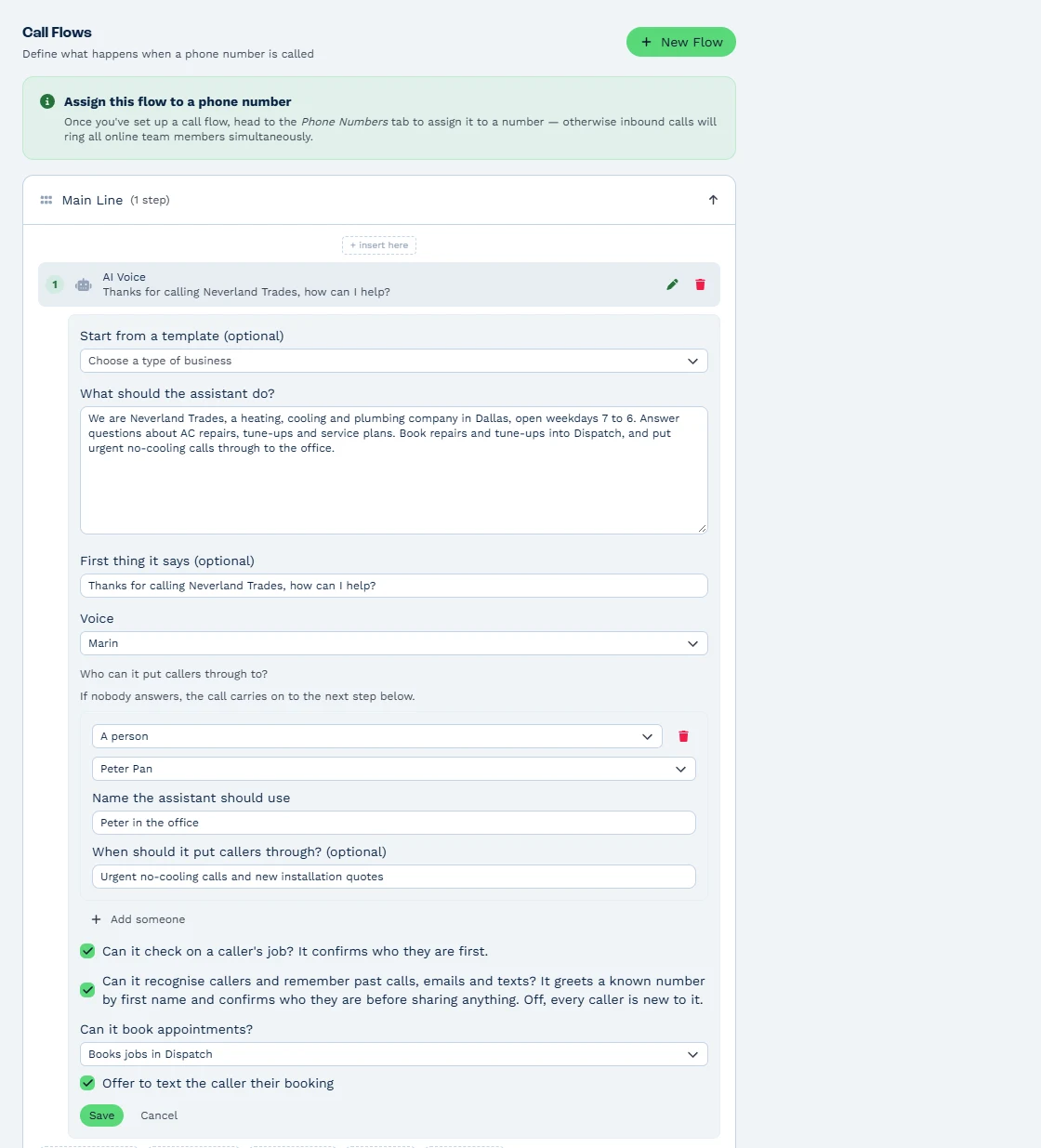
- Open Settings > Telephony/Texting > Call Routing, open a call flow and add an AI Voice step. Pick the call flow for the number you want the assistant to answer, or create a new one.
- Place the step first to answer every call, or after a Ring Group so the assistant picks up whenever your team is busy.
- Under Start from a template (optional), choose Front desk, Heating and cooling, Home services, Appointments or After hours.
- Under What should the assistant do?, write your business facts: your hours, the areas you serve, your services and anything it should never promise. It answers from the business facts you write in (up to 8,000 characters) and knows each caller from their client record, past calls, emails and texts, and their Dispatch job.
- Write the opening line under First thing it says (optional). It can be up to 300 characters.
- Choose a voice under Voice: marin, cedar, alloy, ash, ballad, coral, echo, sage, shimmer or verse.
- Under Who can it put callers through to?, add up to 10 people or other call flows. The assistant checks first whether a person is away or busy.
- Switch on the options you want, described below.
- Save the call flow.
The optional switches
- The Dispatch job check shows when your account uses Dispatch. The assistant tells the caller where their job stands, down to the arrival window and the technician’s first name.
- Turn on Can it recognise callers and remember past calls, emails and texts? so the assistant greets known callers by first name and picks up where you left off.
- Turn on Can it book appointments? so the assistant books real open times on the calendars you choose or as Dispatch jobs, as the next section explains.
Book appointments while the caller is on the line
Turn on Can it book appointments? and choose Books on a calendar, then tick whose calendars it uses, or choose Books jobs in Dispatch. The assistant offers real open times close to the time the caller asks for, and books whoever is free or the person the caller asks for. Set How long is an appointment? (an hour unless you change it), and tick Offer to text the caller their booking so the caller gets it by text.
Calendar bookings run Monday to Friday, 8 to 5, and the assistant books with an hour’s notice. Change the hours by writing them in What should the assistant do?, for example “We also open Saturdays 9 to 1”. Dispatch bookings follow the windows and schedules in your Dispatch setup, and Dispatch counts each technician’s own calendar too.
For online meetings, say so in the instructions, for example “Meetings are online unless the caller asks to meet in person”. The assistant asks for the caller’s email, and the meeting link reaches them through the booked person’s connected Microsoft or Google calendar. Whoever is booked gets an Inbox note each time a booking is made, moved, resized or cancelled, and a confirmed caller can move or cancel their booking with the assistant.
How the assistant checks who is calling
Before it shares anything, the assistant confirms who is calling, as a good receptionist would: their full name, then their street address if you use Dispatch, or another true detail from the record. It keeps staff notes and anything marked sensitive private.
The assistant greets known callers by first name and adds first-time callers as new clients automatically, so every caller ends up on a record.
Make a test call
Call the number from your own phone. Listen to the opening line, ask a question the instructions cover and try a booking. Fine-tune the instructions and call again until it sounds just right.
What happens after a call
- Call History shows the call as Answered by: AI assistant.
- A message the caller leaves becomes a call-back note in the Inbox of the client’s manager.
- Every call is logged on the client with the assistant’s note, and a call it handled fully adds nothing to anyone’s Inbox.
React to AI calls in your automations
The Call Logged trigger tells a workflow whether the AI handled the call and how it ended, with the AI’s summary attached. The outcomes are resolved, message taken, booked, handed off, not a customer and spam.
Use them to text a caller after a booking, tag spam numbers, alert a manager when a call is handed off or add a follow-up note when a message is taken.
Take over a live call
Anyone with an extension and the Manage Phone & Messaging right takes over a live AI call from the Calls column in the phone panel with one click. Find the live call, choose Take over and the caller carries on with you.
When a caller needs more
Whenever a caller needs more, the call carries on to the next step in your flow, such as a ring group or voicemail, so nobody is ever cut off. Put a Ring Group or Voicemail step after the AI Voice step so those callers reach your team.
How much it handles
- It answers up to 10 calls at the same time.
How it is billed
AI Voice is paid from your prepaid credit after each call, on top of your normal call rate. It is priced at R0.60$0.085 per 1,000 tokens, the small pieces of speech the assistant and caller exchange, which works out at about R1.98$0.28 a minute at typical talk.
Each call shows as its own AI Voice line in Settings > Billing > Credits > Transactions, with the minutes and tokens used, and AI Voice has its own usage bar in Billing > Overview. Turn on auto top-up in Settings > Billing > Credits so your credit is always ready. Every rate is on the pricing page.
Set it up by chat
Connect Claude or ChatGPT to BaseCloud and ask it to “Set up an AI receptionist for our main number”. It builds the call flow and the AI Voice step for you, and a new flow starts answering once it is put on a number.
Keep refining by chat, for example “Ring Sarah and Tom for 20 seconds, then have the AI answer” or “Tell the assistant we’re closed on December 25”. Each change is applied whole, and the AI tells you the old setup so you can change it back. The AI app needs the Change how calls are answered permission, and you need the Manage Phone & Messaging right.
Read more about the feature on the AI receptionist page.