
Every payment in BaseCloud is its own record, with an amount, a date, how it was paid and a reference. An invoice takes as many payments as it needs, and its balance is worked out from them. This guide covers recording payments, customer credit, credit notes and write-offs.
Who can do this: Pay Invoices to record and remove payments and apply credit. Create Invoices to credit an invoice or make a credit note. Edit Invoices to write an invoice off, and Delete Invoices to void a credit note.
Record a payment
Click Record payment on the invoice in its client’s Accounting tab, or tick Paid on the invoice. Record payment opens with the amount the invoice still owes filled in.
| Field | What to enter |
|---|---|
| Amount received | What the client paid. Change it for a part payment |
| Date paid | The day the money arrived. It starts at today |
| How it was paid | Bank transfer (EFT), Cash, Card, Card machine, Cheque or Other |
| Reference | Optional, such as the bank reference or a check number |
| Note | Optional, anything worth remembering about this payment |
| Deposited to | With BaseCloud Books on, leave it in Undeposited Funds to match later, or pick the bank account the money went into |
As you type the amount, the window says what will happen. Less than the invoice owes makes it Part Paid. The full amount or more makes it Paid, with any extra kept as the client’s credit.
Click Record payment. A note is added to the client, and automations that react to payments run.
To pay many invoices in full at once, select them on the Accounting page and use Bulk Actions, then Mark as paid.
Deposits and part payments
A payment on a quote turns it into an invoice first. A part payment makes it a part-paid invoice, which is how a deposit works. Record each progress payment against the same invoice, and its Balance shows what is still owed.
The Accounting page and the client’s Accounting tab show what is Paid and the Balance on each invoice. Filter by Payment Status to find every part-paid invoice.
One payment across several invoices
Use Record a payment in the balance box at the top of the client’s Accounting tab.
- Enter the amount the client paid.
- The window lists the client’s open invoices, oldest first, with what each owes.
- Click Fill oldest first to spread the payment over them, starting with the oldest, or enter amounts under Pay yourself.
- Click Record payment. Whatever is left over is kept as the client’s credit.
For a prepayment up front, enter the amount and leave the invoices empty. The whole payment is kept as credit.
Customer credit and the balance box
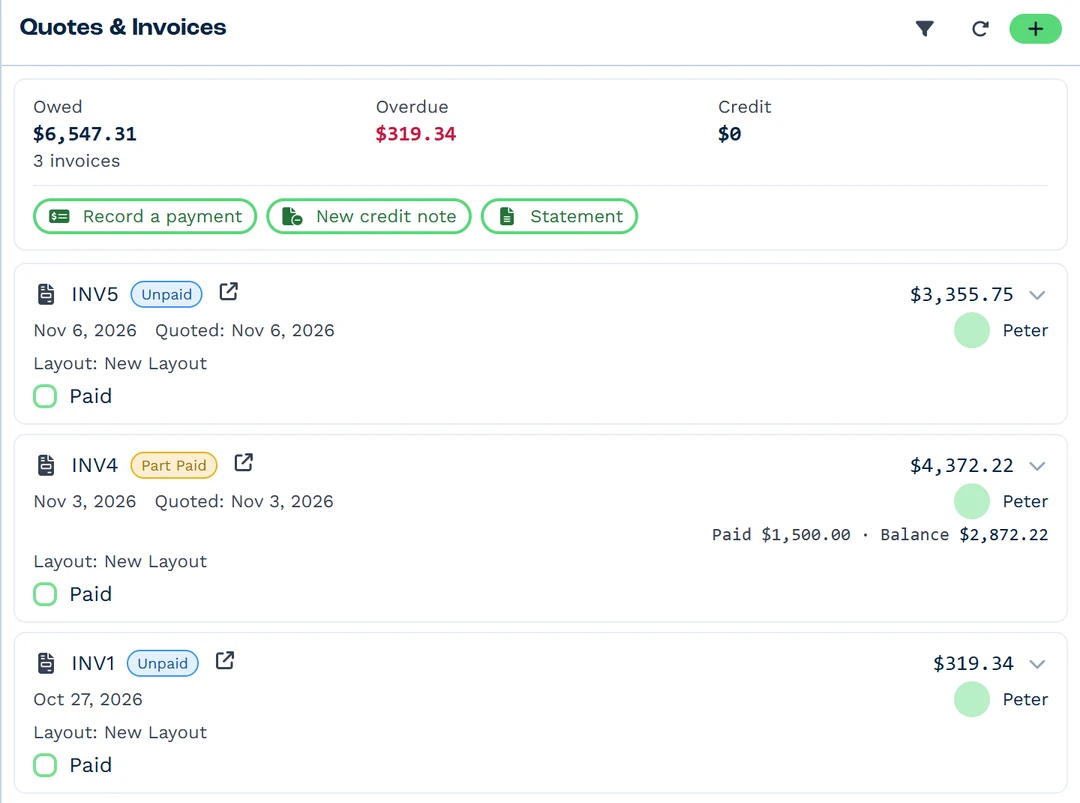
The balance box at the top of the client’s Accounting tab shows where the account stands:
| Box | What it is |
|---|---|
| Owed | What the client owes on their open invoices, and how many there are |
| Overdue | The part of that past its due date |
| Credit | Credit the client has to use |
Overpayments and prepayments become credit, and so does a credit note. When you make a new invoice for a client with credit, the credit goes onto it at once, oldest credit first.
To use credit on an invoice the client already has, click Apply credit in the balance box. Pick the credit and the invoice, then click Apply credit. Change the amount first to use less. Unapply next to it in the invoice’s payments list takes it back off.
Remove a payment
Click the bin on the payment in the invoice’s payments list, give a reason if you like (such as “recorded twice”), and click Remove payment. The invoice owes the money again, and automations that react to an invoice marked unpaid run.
A removed payment is kept, along with who removed it and the reason. Click Show removed under the list to see it.
Credit notes
A credit note says the client owes you less, or that you owe them money back. Use one whenever a real sale changes after the invoice went out, such as goods returned or a price agreed down.
Each credit note has a CN number from the same sequence as your quotes and invoices (QU1024, INV1025, CN1026). It looks like an invoice and prints as a PDF with your layouts. It lowers your sales and sales tax on its own date.
To credit an invoice, open it in the client’s Accounting tab and choose Credit. Under What to credit, pick:
- All of it, for every line and the whole total
- Choose lines, for the lines you pick and how many of each
- An amount, for one line of the amount you enter, tax included, for a discount agreed after the fact
Set the date and a reason, and click Make credit note. The credit goes onto the invoice first. When the invoice was already paid, the whole credit note becomes the client’s credit.
For example, a US plumbing company invoiced $1,082.50: a $1,000 job plus 8.25% sales tax. Choose An amount and enter 270.63, and the credit note is $250.00 plus $20.63 sales tax. The invoice now owes $811.87.
Goodwill credit
For a standalone credit, such as goodwill for a late job, use New credit note on the client. Add lines as you would on an invoice, then set the date and reason and click Make credit note. The client’s next invoice uses the credit by itself.
Write off a bad debt
When a customer will never pay what is left on an invoice, write it off. BaseCloud makes a credit note for the balance with the reason “Written off”, split over the invoice’s lines at each line’s own tax rate, so the tax on what you wrote off comes off your sales tax or VAT.
Your sales reports keep the sale, and with BaseCloud Books on, the write-off goes to your Bad Debts expense account. When the client pays after all, void the write-off’s credit note and the invoice owes the balance again.
Refunds
Our support team records refunds for you: tell them the client, the amount, the date and how you paid it back. Refund a sale makes a credit note for what you refunded and records the money paid back, so your sales and sales tax go down on its date. Refund credit records credit you paid back to a client, such as an overpayment.
Paid and reconciled invoices are locked
BaseCloud protects invoices that have money on them, so they always match the money received and the bank.
- To change a paid or part-paid invoice, remove its payments first, or credit it with a credit note.
- A reconciled invoice stays locked until Recon is unticked. Every unlock step leaves a note and runs its automation.
- Payments that arrive online or from a workflow are always recorded.
Online payments and automations
Each invoice has a payment link. The pay page shows the payments and credits so far next to the balance due, so a part-paid invoice is paid online too, and every online payment is recorded whatever the amount. See set up Stripe or Paystack invoice payments.
Workflows started by the CRM Trigger on Quote / Invoice Change react to Payment received (every payment, part payments included), Payment refunded, Credit note created, Marked as paid and Marked as unpaid. The Accounting task’s Mark Quote / Invoice Paid records part payments too: set the Amount, and add the method and reference.
A connected AI app such as Claude or ChatGPT also records payments, credits or writes off an invoice, and applies credit, when you ask. To send a client their balance, see customer statements.