

Surprisingly, we have reviewed many Google Ads accounts where conversion tracking has not been set up. Upon looking at the account, I noticed that there is very little one can do to offer insights or make improvements without conversion tracking.
After all, you are using digital marketing platforms and tools for one sole purpose: to generate conversions, so why not measure them?
Without proper conversion tracking, you will have no insight as to where you can improve your Ad campaigns.
What Is A Google Ads Conversion?
A conversion is something that you would like to measure and that carries value to your business. Typical examples of conversions would be:
- Form submissions
- Phone calls
- Emails
- Chats
- Sales
- Newsletter signups
- App downloads
Why Google Ads Conversion Tracking is Important
It is extremely important to be able to measure conversions since you would be able to identify how much you have spent on Google Ads (and other marketing tools) within, for example, a month’s time and how many conversions were generated.
Knowing how many conversions were generated for a certain amount of spending is a critical answer, as you will be able to make informed decisions in the future. This is where ‘cost per conversion’ comes in, and it is calculated by taking your total Google Ads cost and dividing it by the total number of conversions.
For example, let us assume your current ‘cost per conversion’ is R200/conversion. This is great to know because you will be able to answer a simple question for yourself: “Is spending R200 for someone to enquire about my services worth it?”.
If the answer is yes, then you are already on the right track and have proven that your Google Ads are already working for you. If your answer is no, then you know that there is a lot of work to be done to make Google Ads marketing worthwhile for your business.
The above is just a high-level overview of the immediate insights that would be valuable to you; however, the following list provides additional reasons why you would want to use conversion tracking.
Reasons to Use Conversion Tracking
- Identify which keywords, Ads, Ad Groups, and Campaigns are most effective at driving valuable customer activity.
- Calculate and understand your Return On Investment (ROI).
- Make decisions to optimise your Google Ads account further.
- Use Smart Bidding strategies such as Maximise Conversions, Target CPA, and Target ROAS. These strategies automatically optimise your campaigns according to your set goals.
- Compare your website conversion rate to average conversion rates in your industry. If your conversion rate is low:
- Could indicate that your website may need some work to improve customer journey and experience.
This could indicate that the users you are sending to your website have low intent, which could point to targeting issues.
Setting Up Conversion Tracking
Setting up conversion tracking may seem difficult and tedious. However, there are remarkable tools to assist you in this process, like Google Tag Manager, which makes it a breeze.
What you Need to use Google Tag Manager
- Your website login details
- Access to your Google Tag Manager account (free to setup)
- Access to your Google Ads account
Steps to set a conversion action in Google Tag Manager
For this demonstration, we will set up a Form Submission conversion action and assume that you have a WordPress website.
1. Create a Google Tag Manager Account
2. Add a new account in Tag Manager (for your website)
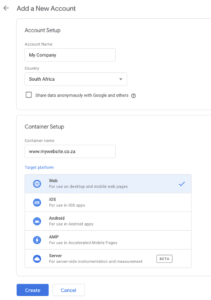
3. Install Google Tag Manager on your website by pasting the relevant codes shown in the image below on your website.
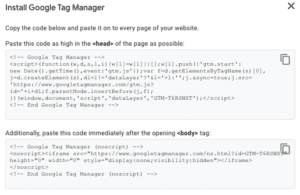
a. Use the WordPress plugin “Head, Footer and Post Injections” by Stefano Lisa

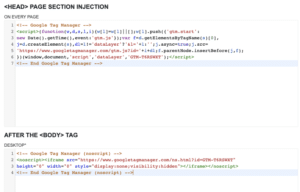
b. Navigate to Settings, and click on the tab labelled “Header and Footer”, as shown on the bottom right.

c. Paste the script provided by Google Tag Manager, as shown below:
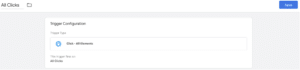
4. Create the following trigger
a. Name: “All Clicks”, Trigger Type: Click – All Elements
- Then click on Submit, Preview, enter your website URL, and click on Connect.
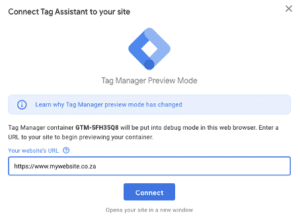
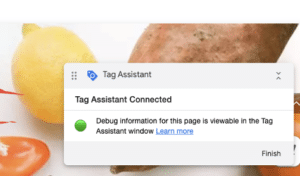
This will open up two (2) tabs, one for Tag Assistant and another for your website, with a pop-up that says that Tag Assistant is connected.
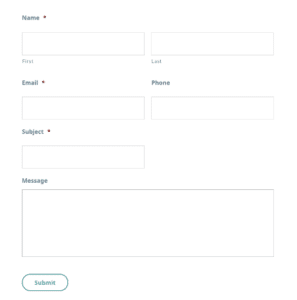
6. Navigate to your form submission and click on the submit button:
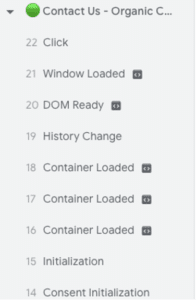
7. Then go to the Tag Assistant tab in your browser, and click on the last action you performed, labelled as “Click” in the left side pane.
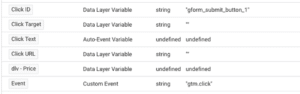
8. Then click on Variables, and you will be greeted with a bunch of variables, like Click Classes, Click ID, Click Text, etc.
Choose a unique variable. In this case, the unique variable will be Click ID, which has a value of “gform_submit_button_1.”
9. Now go back to your Google Tag Manager Tab, click on Tags and create a new Tag.
a. Name it “Form Submission.”
b. On Tag Configuration, choose Google Ads Conversion Tracking.
c. Enter your Conversion ID and Conversion Label. To find these unique values:
- Go to your Google Ads account, click on “Tools & Settings,” and under “Measurement,” click on “Conversions.”
- Click on the “+” icon and choose “Website”.
- Select the Category as “contact”, Conversion Name as “Form Submission”, Value as “Don’t use”, and Count as “one”.
- Then click on “Create and Continue”.
- Choose the “Use Google Tag Manager” option to provide you with the unique Conversion ID and Conversion Label.
- Then click Next.
d. Then click on Triggering to create a new trigger.
- Name it Form Submission
- Choose the Trigger Type as “All Elemente”
- Set the trigger to fire on “Some Clicks”
- Choose Click ID, and set it to Contains “gform_submit.”
- Click save.
e. Save your tag.
-
Now click on publish again.
-
you have successfully set up a conversion tag for your form submissions.
- This means that if a user clicks on one of your ads, goes to your website, and clicks on your submit button, Google Ads will count that as a conversion.
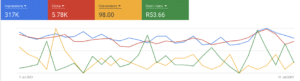
- Your Google Ads dashboard can now report on conversions and cost per conversion, similar to what is shown here:
Please take note that these steps are very basic, and not everything is covered in detail. You can use this method for other conversion actions, such as measuring phone number clicks or email address clicks.
To measure sales for your eCommerce website, there are slightly different steps to pursue; where this article can assist you to set up conversion tracking for your eCommerce website and track revenue figures.
Advanced Tools for Accurate Conversion Tracking
Even though you might measure phone number clicks or email clicks as conversions, this information is still inaccurate. The reason we say this is because you would need to find out if that user phoned you or emailed you. All you know is that the number or email address was clicked on. You will either be grossly over or under-reporting, which is also not beneficial,
This is where BaseCloud Advanced Tracking can assist in measuring true and accurate conversions. BaseCloud AT can measure phone calls, emails, and form submissions with 100% automated accuracy, so you will know for certain how many conversions were generated.
This will naturally allow you to calculate your true cost per conversion and also your true ROI accurately. Feel free to read up a bit more about BaseCloud Advanced Tracking here.


